
How to Use a VRM Viewer Online
VRM is the open humanoid avatar format built for VTubing, social VR and virtual production. This guide covers what a .vrm file carries, how to open one in the browser, what the Info panel reports, and how to diagnose the common problems that come up with avatar assets.
Why VRM is the standard for 3D avatars
Standard 3D formats such as OBJ and GLTF can represent characters as ordinary meshes. A .vrm file is designed for humanoid 3D avatars. Based on glTF, VRM can include humanoid bone mappings, facial expressions, spring bone settings, and avatar metadata, depending on the VRM version and the content exported by the creator.
VRM is commonly used for virtual avatars, VTubing, social VR applications, and real-time character experiences. A compatible viewer can help you inspect an avatar without first importing it into a full 3D editing application.
Step by step opening guide
Open the VRM Viewer
Load GLBKit's VRM Viewer. The workspace opens on the Viewer tab, with the avatar empty until you provide a file.
Drop in the .vrm file
Drag the file onto the drop zone or use Browse Files. A VRM carries its geometry, materials and textures inside one container, so there are no companion files to select alongside it.
Read the file in the Info panel
Open Info to see the mesh, material and texture names the file contains, the node hierarchy as it arrived, and any animation clips it carries. Because a VRM is self-contained, an empty Materials or Textures block means the source genuinely had none — not that something failed to resolve.
Frame it with the Camera panel
Pick a projection, one of the seven view presets, a field of view and a zoom level. Reset Camera returns perspective, a 40° field of view, 1x zoom and the isometric preset.
Judge it under lights
Open the Lights and Environment panels. VRM avatars commonly use PBR or MToon materials, and how they read depends on what is lighting them — key, fill and rim lights, plus an HDRI for reflections.
What the VRM Info & Metadata report
The information available for a VRM model depends on the file and the features supported by the viewer. Where available, avatar metadata can include the model name, author, version, and usage permissions. These details help you understand the asset and check its creator-provided terms before using or redistributing it.
| Information | What it can tell you |
|---|---|
| Title and author | The model name and creator information stored in the file. |
| Version | The version information supplied by the creator. |
| Usage permissions | Creator-provided terms for personal use, commercial use, or redistribution, when present. |
| Humanoid rig | Whether the avatar includes humanoid bone mapping supported by the viewer. |
| Expressions | Whether facial expression data is included and supported by the viewer. |
The information displayed depends on the VRM version and what GLBKit's current viewer exposes. Do not assume that every VRM file includes every metadata field, expression, or physics setting.
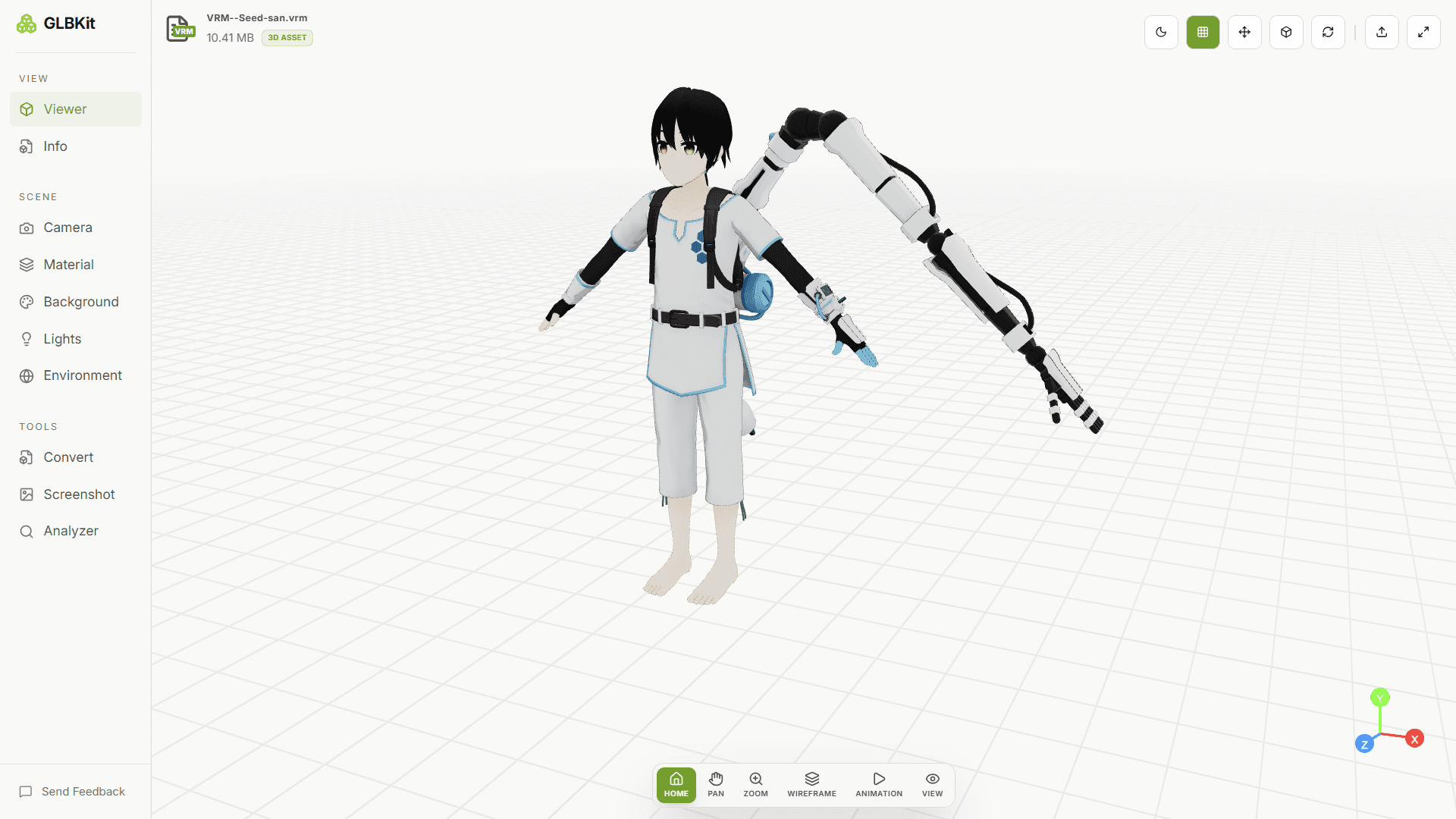
Camera framing for avatars
Camera framing helps you inspect an avatar from different angles. Start with a full-body view, then zoom in to examine the face, clothing, hair, and accessories. Use the camera controls available in the viewer to adjust the framing.
| Control | Purpose |
|---|---|
| Camera Type | Perspective or orthographic projection, if available. |
| View Preset | 7 fixed angles: Front, Back, Top, Bottom, Left, Right, Isometric. |
| Field of View | 20° to 100°, default 40°. This applies to perspective projection. |
| Zoom | 0.25x to 5x, default 1x |
For a closer inspection, frame the head and upper body first. Return to a full-body view when checking the overall proportions and silhouette.
Lighting and facial expressions
Lighting affects how avatar materials, hair, skin, and clothing appear. If the model looks too dark or flat, try a different available lighting or environment setting before concluding that the original materials are incorrect.
Lighting
Use the lighting controls that are available in the viewer to inspect the model under different illumination. Changes in highlights and shadows can make material details easier to see.
Facial expressions
Some VRM avatars include facial expression data. Whether you can preview or change those expressions depends on the current viewer controls and the expression data stored in the model.
Capture settings and transparency
Screenshot settings help you prepare an image for documentation, presentations, or a portfolio. Choose the available image format, resolution, and background options before capturing the model.
| Setting | Options |
|---|---|
| Image Format | PNG or JPEG |
| Resolution | 1280 × 720 (HD), 1920 × 1080 (Full HD), 3840 × 2160 (4K) |
| Background | Transparent, White, Black |
Transparent backgrounds are useful for avatar overlays when the selected output format supports transparency. For the complete capture workflow, see How to Take GLB Screenshots.
Playing animations and expressions
A VRM file may contain humanoid rig information and facial expression data, and some avatars also include animation-related content. However, loading a model does not guarantee that every animation or expression can be played or controlled in every viewer.
If an avatar appears static, check which animation and expression controls the current GLBKit viewer actually provides. If the expected movement is missing, the file may not contain the required data, or that feature may not be supported by the viewer.
VRM vs GLB: what is the difference
VRM and GLB are related formats, but they are intended for different workflows. GLB is a general-purpose binary container for glTF assets. VRM builds on glTF conventions to represent humanoid avatars and related avatar-specific information.
| Feature | VRM | GLB |
|---|---|---|
| Primary purpose | Humanoid avatars and avatar-related data. | General-purpose 3D scenes and assets. |
| Humanoid conventions | Can include standardized humanoid rig information. | Does not inherently provide VRM-specific conventions. |
| Avatar metadata | Can include avatar-specific metadata and permissions. | Uses general glTF asset and scene information. |
| Compatibility | Requires support for the relevant VRM version and extensions. | Supported by many general-purpose glTF viewers. |
Choose a VRM-compatible viewer when you need to inspect avatar-specific information. Choose a GLB viewer for general glTF scenes and assets. You can also read the How to Use GLB Viewer guide for the general model-viewing workflow.
When something looks wrong with your avatar
The avatar does not load
Confirm that the file has a .vrm extension and is within the viewer's upload limit of 150 MB. If it still fails, the file may be incomplete or use a VRM version that the viewer does not support.
The avatar looks different than expected
Lighting, material settings, and texture support can affect the rendered appearance. Try the available lighting and camera controls, and compare the result with the original file in a compatible VRM application if needed.
Expressions or movement are missing
Not every avatar contains facial expressions, animations, or physics data. Confirm that the data exists in the source model and that the viewer supports the relevant feature before troubleshooting further.
The model is difficult to frame
Reset the camera if that option is available, then zoom out until the full avatar is visible. Use a front or three-quarter angle to inspect the overall model before zooming in on details.
FAQ
What is a VRM file?
VRM (Virtual Reality Model) is an open format for humanoid 3D avatars, built on glTF. A single .vrm file packs geometry, PBR or MToon materials, textures and humanoid rig metadata — eye height, bone arrangement, blend shapes for facial expression — into one binary, so it can move between authoring tools, VTubing apps and social VR platforms without losing the avatar definition.
What is VRM used for?
VRM is the common avatar format for VTubing, virtual production, social VR and any platform that needs a consistent humanoid character. Because the rig metadata travels with the file, an avatar authored once can be dropped into a streaming rig, a virtual meeting space or a game prototype and still behave as a character rather than an unmapped mesh.
What does a VRM viewer do?
A VRM viewer opens a .vrm file and renders it in 3D so you can inspect the avatar from any angle — geometry, materials, textures and scale — before it goes live. GLBKit's VRM Viewer also reports the file's mesh, material and texture names and node hierarchy through the Info panel, and gives you camera, lighting and background controls for judging how the avatar looks.
Can I pose or animate the avatar in the viewer?
No. GLBKit's VRM Viewer renders the avatar as a static mesh. It reads the geometry, materials, textures and metadata the VRM carries, but it does not keep the humanoid rig for posing, so you cannot apply blend shapes or bone transforms. It is for inspection and visual checks, not for rigging or previewing animation — use the original authoring tool for that.
Does the VRM Viewer modify my file?
No. Every panel in the workspace changes browser state only. Camera, Material, Background, Lights and Environment are display settings, and Screenshot produces a separate image. Reloading the model restores its original appearance.
Is the file processed on my device?
Yes. Parsing and rendering happen locally in your browser. Nothing is uploaded to a server, which matters for unreleased or client-owned avatar assets. There is no account required to open and inspect a VRM.
My VRM looks wrong — where do I start?
Start with the Info panel. Confirm the Textures section lists your images and the Materials section is not empty. A missing-texture or unresolved-buffer failure mode cannot happen with a VRM the way it can with a manifest-based format — if something is missing, the file genuinely lacks it. If the avatar renders flat, disable the HDRI and raise the key light; if it renders grey, the exporter wrote no materials and you can override values in the Material panel for a display check.
Which materials does the viewer support?
VRM avatars commonly use PBR materials or the MToon cel-shading profile, and GLBKit renders both. The Material panel lets you override Base Color, Metalness, Roughness and Opacity per material by name, which is the quickest way to tell whether a surface that looks wrong has a texture problem or a material problem.
Related guides
Open the VRM Viewer
Open a VRM avatar in GLBKit to inspect it using the controls supported by the viewer.