
Why Are Textures Missing From My 3D Model?
Model looks white or grey? Learn to tell a missing texture file from a material with no image, and how to fix texture problems in GLB, glTF, OBJ and FBX files.

Two causes that look the same
A model that opens white, grey or flat-colored is rarely a viewer fault. Two quite different situations produce that look. In the first, the material points at an image, and the image never arrived or could not be decoded. In the second, the material never had an image at all and is showing its base color, exactly as the artist saved it.
They call for opposite responses. The first is a delivery problem, and the fix is to get the right files to the viewer. The second is a property of the source file, so re-uploading changes nothing; any fix happens in the modeling tool. This guide shows how to tell the two apart in about a minute, what usually causes each, and how to repair the ones that can be repaired.
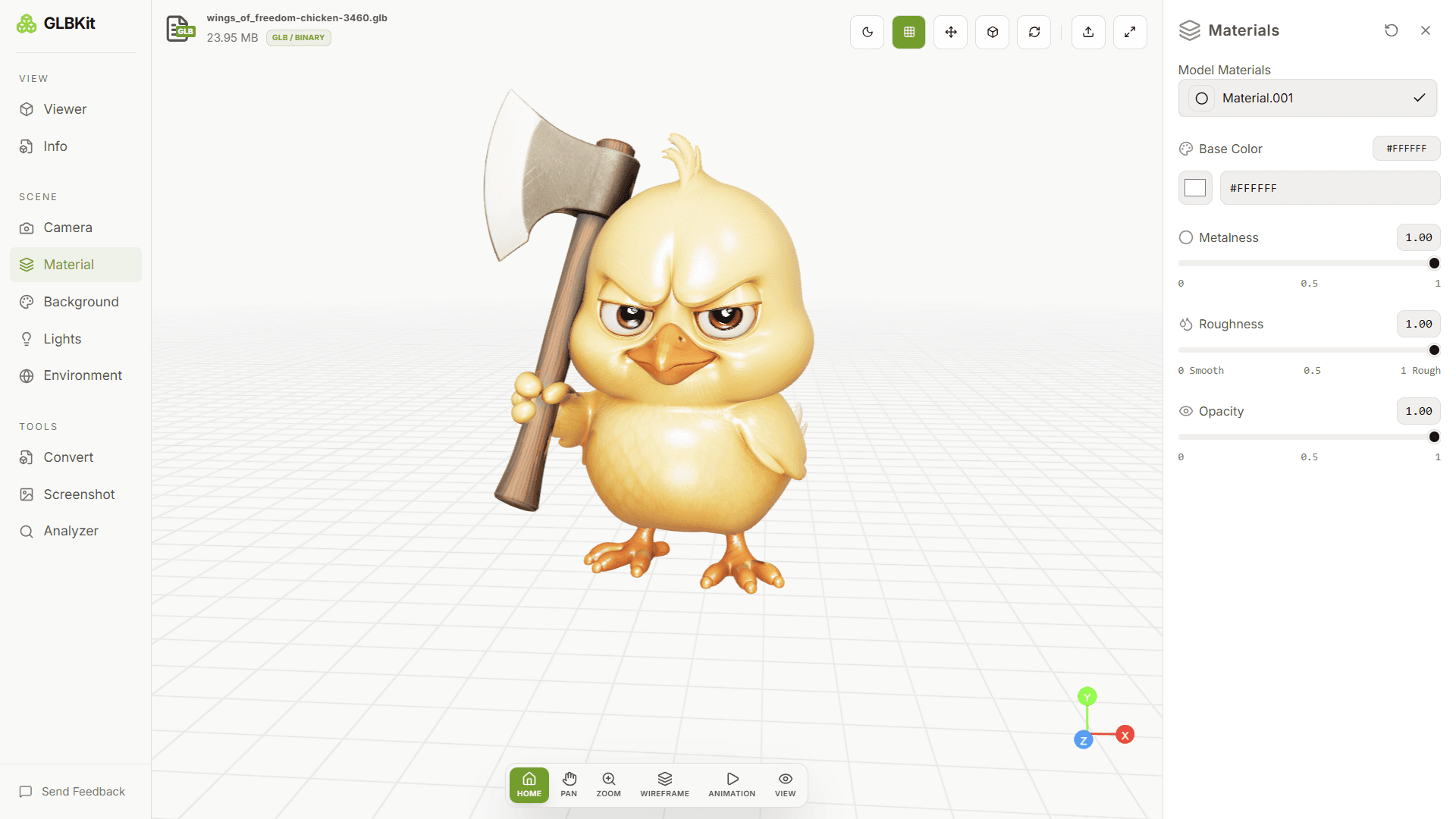
Every check below uses the Info panel, the Material panel and the Analyzer in the GLBKit viewer. None of them edits your file. The viewer only reads it, and any change you make in a panel lasts for the session.
How a material finds its texture
A texture is never stored inside the mesh. The material holds a reference, and that reference has to resolve to real image data at the moment the file is opened. How the reference is written depends on the format, and each style has its own way of failing. For the packaging differences between the two most common formats, see GLB vs GLTF.
| Format | Where the reference lives | How it usually breaks |
|---|---|---|
| GLB | The images are packed inside the file itself | Rarely breaks. The image may simply never have been exported |
| glTF | An images list in the JSON gives a relative path, or an embedded data string, for each image | The .bin or image files are not next to the .gltf, or the path contains spaces or a drive letter |
| OBJ | A line in the OBJ names a .mtl file, and the .mtl names the image files | The .mtl is missing, or it holds a folder path from the artist's computer |
| FBX | Images are either embedded in the file or stored as external paths | External paths point at the exporter's computer |
| DAE | Materials refer to image files by path | The same path problems as glTF |
Two details explain most surprises. First, a path is only text. A file named Wood Base.PNG and a reference to wood_base.png are different strings, and whether they count as a match depends on the system opening the file. Windows and macOS normally ignore letter case; Linux servers do not. Second, an absolute path such as C:\Users\sam\textures\wood.png is meaningful on exactly one computer. A model saved with absolute paths looks perfect to its author and untextured to everyone else.
GLBKit is forgiving about the first problem. When it looks for an image, it tries the exact path, then the bare filename, then a filename match that ignores letter case. That rescues many casing and folder differences. What it cannot do is find a file that was never uploaded, which is why a model and its companion files should travel together as one .zip.
Diagnose it in the viewer
Work through these five steps in order. Each one narrows the cause before you change anything.
Load the model with everything it needs
Drop the file into the 3D model viewer. If the model is split across files, such as a .gltf with a .bin and images, or an .obj with an .mtl and textures, zip the folder and drop the .zip so every reference can resolve.
Open the Info panel and expand Textures
Note whether any texture names are listed and how many. A name in the list means the file references an image. An empty list means no material points at one.
Compare with the Analyzer
Open the Analyzer and compare Materials with Textures and Unique Textures. Many materials and zero textures suggest the model was saved without images. Textures listed but a flat-looking model suggest the images did not load.
Run the base color test
Select a material in the Material panel and set its base color to a strong color such as red. Base color multiplies the image, so surface detail should stay visible as a tint. If the whole surface turns a flat, uniform red, no image detail is being applied to it.
Repair the cause, reload and compare
Fix the cause using the sections below, then drop the corrected package in again. The Textures list and the look of the surface should now agree with each other.
What each clue means
Each observation points to one row of this table. Start with the clue that matches what you see.
| What you see | Likely cause | What to do |
|---|---|---|
| Textures list is empty, but Materials is above zero | The materials carry only color values, or the images were not exported | Nothing to repair in the viewer. Re-export from the source with images connected |
| Texture names are listed, but the surface is flat | The reference was found, but the image is missing or cannot be decoded | Add the image to the .zip and check its filename and format |
| The glTF is flat, but the GLB of the same scene looks fine | Companion files were missing from the upload | Zip the whole glTF folder and drop in the .zip |
| Textures appear stretched, smeared or as a single color | The mesh has missing or wrong UV coordinates | Fix the UV unwrap in the modeling tool and export again |
| Textures appear, but the model looks washed out or too dark | Lighting or color space, not a missing file | Turn the Environment off and judge by the Lights panel |
| A metal part renders very dark | Metal needs something to reflect, and glTF defaults metalness and roughness to full when a material leaves them out | Turn the Environment HDRI on, or adjust Metalness and Roughness in the Material panel |
Causes that start in the modeling tool
Many missing textures are decided before the file ever reaches a viewer. These are the causes worth checking at the source.
Procedural and unsupported material setups
Exporters read only a limited set of material connections. A noise, gradient or other procedural pattern generated inside the modeling software is not an image, so it cannot travel inside a file. Bake it to an image first, then connect that image. Colors blended through a complicated node network may export as a plain value for the same reason. The exporter's own documentation, such as the Blender glTF exporter, lists which setups it understands.
Missing or empty UV maps
A texture needs UV coordinates to know which part of the image belongs on which part of the surface. A mesh without a UV map gives the renderer nothing to sample the image with, so the surface shows a single color or a smear instead. This one is easy to miss because the material, the image and the reference are all correct. If the Textures list is full and the surface is still one flat color, suspect the UVs before you suspect the files.
Image formats that browsers do not decode
Browsers decode PNG, JPEG and WebP natively. Formats common in production, such as TIFF, TGA and PSD, are not browser image formats, so a viewer that runs in a browser generally cannot display them unless it adds special handling. If a texture is listed but never appears and its extension is one of those, convert the image to PNG or JPEG and update the reference.
Paths, spaces and names
Keep texture names short, lowercase and free of spaces and accents. In glTF a space in a path has to be written as %20, and hand-edited files often get this wrong. Use relative paths only, and keep the folder structure unchanged when you zip the package.
Linked instead of embedded
Most tools can either embed images in the exported file or link to them. A file saved with linked images and moved to another computer without them is the classic missing-texture package. To share one file, export a GLB or use your exporter's embed or pack option.
Repair the package
glTF with companion files
Put the .gltf, the .bin and every image in one folder, keep the relative paths exactly as the JSON writes them, zip the folder and drop the .zip into the viewer. To end up with one portable file, the ZIP to GLB converter packs the same archive into a single GLB.
OBJ and its material library
Open the .obj in a text editor and find the line that starts with mtllib. The name after it must match the .mtl file exactly. Then open the .mtl and look at each line that starts with map_Kd, which names the diffuse image. Each should hold only a filename such as wood_base.png, not a drive path. Fix the lines, place the images beside the .mtl and zip everything together. The differences between OBJ and a self-contained format are covered in GLB vs OBJ.
FBX and DAE
FBX can embed its images or point at external files. If the textures are missing, export again with the embed option turned on, or copy the images into the folder beside the file and zip it. A DAE file lists image paths in its XML, and the paths are corrected the same way as in a glTF.
When the original images are gone
If the image files no longer exist, the Material panel can restore plausible base colors so the model reads correctly under lighting. That makes the model presentable, but it cannot bring back surface detail. Real detail returns only when the textures are republished from the authoring tool.
After repairing, check that the result is valid before you share it. The Khronos glTF Validator reports broken image references and other glTF problems. Each format also has its own viewer page for a quick look: GLB, glTF, OBJ, FBX.
Check a model before you share it
A short routine prevents most missing-texture reports before they happen.
| Check | Why it matters |
|---|---|
| Open the exported file in a viewer, not only in the modeling tool | The modeling tool may find images that other computers will not |
| Compare the Textures list with what you expect | A shorter list than expected means some materials lost their images |
| Prefer GLB for a finished model | Nothing can be left behind in a single file |
| Judge the look once under the Lights panel alone | It shows what the materials look like without an HDRI hiding or exaggerating them |
What the viewer can and cannot fix
The viewer reads your file and shows what it contains. Overrides in the Material panel change the session only, and Reset Materials returns each material to the values it arrived with. The viewer cannot repair a missing image, invent UV coordinates or recreate a procedural texture. What it can do is show which of those problems you have, so the repair happens in the right place. For a fuller view of what a file contains, including material, texture and memory counts, How to Analyze 3D Models explains each number in the report.
FAQ
Does a grey model always mean a texture is missing?
No. A material with no image, or with only a base color, renders as a flat color by design. A grey look can also come from flat lighting, an even HDRI or a neutral base color. The Textures list in the Info panel and the base color test in the Material panel separate these cases.
What is the difference between a missing texture file and a material with no image?
A material with no image has no texture reference in the file, so nothing is listed for it. A missing texture file belongs to a material that does reference an image, so the name appears in the Textures list, but the image failed to resolve or decode and the material falls back to its base color.
Is GLBKit case-sensitive about texture filenames?
Usually not. GLBKit tries the exact path, then the bare filename, then a filename match that ignores letter case, so a difference in capitalization between the reference and the file still loads in most cases. It cannot find a file that was not uploaded. A strict server or game engine may be case-sensitive, so match the casing exactly before you deploy the asset.
Can I see which textures a model references without opening it in GLBKit?
For a .gltf, yes. It is JSON, so open it in a text editor and read the images list, where each entry has a uri. A .glb packs its images into the binary, so they are not visible as paths, but the Info panel lists them by name once the file is loaded.
Why does a glTF show untextured when the GLB of the same scene looks fine?
A GLB carries its images inside the file, so everything travels together. A glTF references separate image files, and those references break when a file is missing from the upload. Zip the whole folder and drop in the .zip.
Can I convert a glTF to a GLB to avoid this problem?
Yes, as long as the images are present when you convert. Zip the glTF folder and use a ZIP to GLB converter. The result is a single file that cannot lose its textures in transit.
Related guides
Open the 3D Model Viewer
Load a model and open the Info panel's Textures section to see exactly which images it references. Files up to 150 MB, processed in your browser.