
What GLBKit Conversion Actually Preserves: A Practical Troubleshooting Guide
What GLBKit conversion actually preserves when you change formats — and what may be lost. Learn which attributes survive each target, how to verify your converted file, and how to choose a format that keeps what you need.

What conversion preserves and discards
Conversion is a statement of intent about what the destination format is able to hold, followed by a translation into whatever it can carry. A GLB can become a GLTF with only a packaging change, but converting that same model to STL drops everything except triangle geometry — not because anything went wrong, but because STL has no material, texture or hierarchy fields to receive it.
GLBKit makes that explicit by deriving the target list from the source format you loaded, and by attaching notes to each conversion. The table below is the part worth keeping handy: most of the disappointments people bring to support are explained by a single row of it.
Before you convert, confirm what the source actually contains. The 3D Model Analyzer reports vertex colours, UVs, image textures, animations and skinning — the very things most likely to be affected by a format change.
Step by step
Inspect the source first
Open the Info panel on the source model. Note whether it has vertex colours, UVs, image textures, animations or skinning — those are the things most likely to be affected by a conversion.
Choose a target that can carry what you need
Different formats hold different kinds of data. STL and OFF hold triangles only. PLY holds geometry, normals and vertex colours but not textures. GLB and GLTF hold the most, but drop animations in this tool.
Convert and read the notes
When the conversion finishes, read any notes the converter attaches. They usually explain what was dropped — for example, that a point cloud was exported as unsorted points, or that an OBJ texture readback failed.
Reopen the result and compare
Load the converted file back into the Viewer and compare mesh counts, material counts and texture presence against the source. A matching count with different appearance usually points at materials; a large discrepancy points at dropped geometry.
Which targets are offered for each source
The target list is not a fixed menu. It is built from the source format, so an empty or missing entry means the pair is not implemented rather than that the conversion failed. If the format you need is absent, there is no route to it through GLBKit.
| Source | Targets you can choose |
|---|---|
| GLB | GLTF, OBJ, STL, PLY, 3MF, FBX, OFF |
| GLTF | GLB, OBJ, STL, PLY, 3MF, FBX, OFF |
| OBJ | GLB, GLTF, STL, PLY, 3MF, FBX, OFF |
| STL | GLB, GLTF, OBJ, PLY, 3MF, FBX, OFF |
| PLY | GLB, GLTF, OBJ, STL |
| 3MF | GLB, GLTF, OBJ, STL, FBX, OFF |
| FBX | GLB, GLTF, OBJ, STL, PLY, 3MF, OFF |
| OFF | GLB, GLTF, OBJ, STL, PLY, 3MF, FBX |
PLY offers only four targets while GLB offers seven. That gap is the point-cloud distinction explained in the section below, not an inconsistency in the converter.
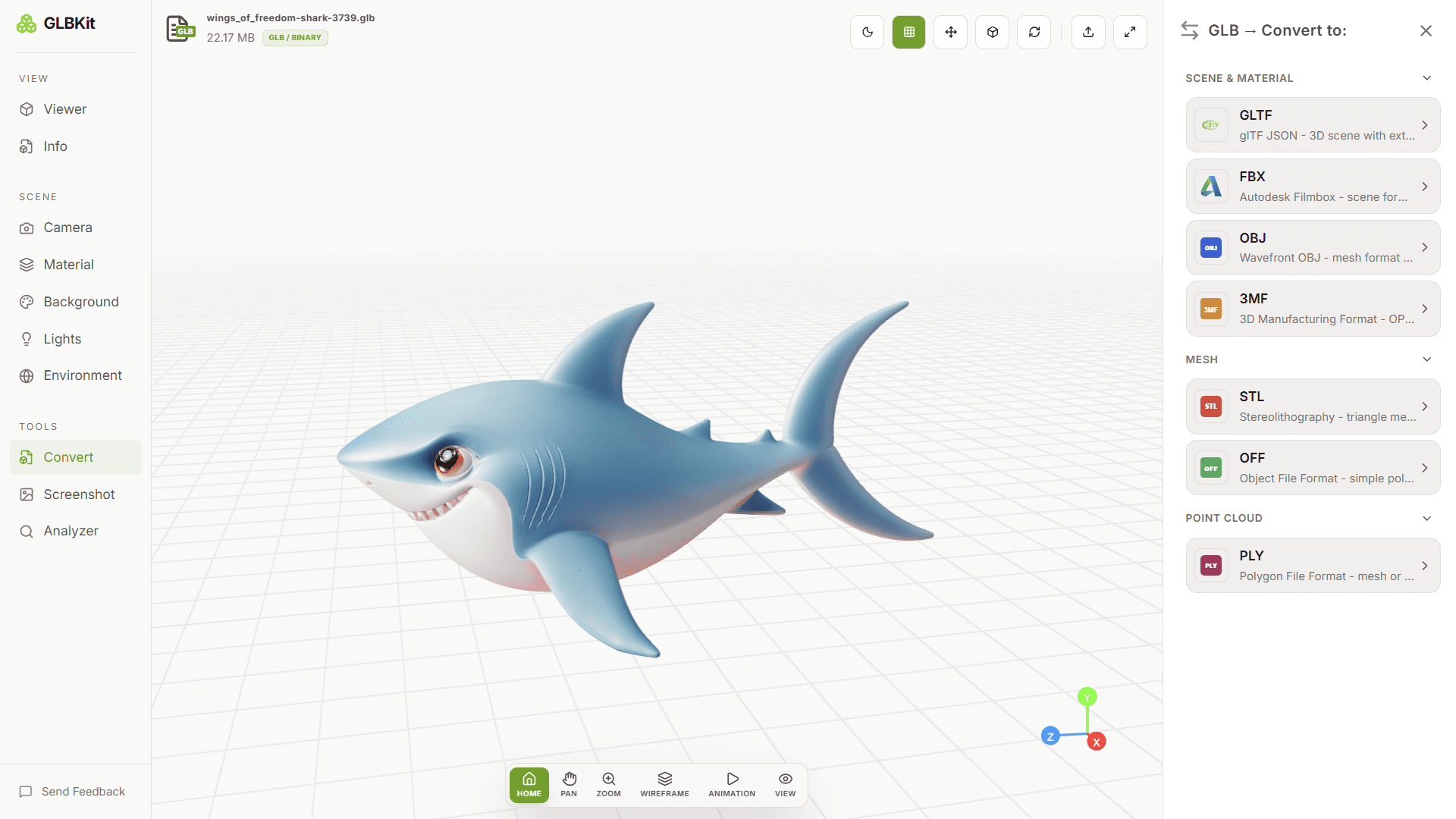
What each target format keeps and loses
Every target here can represent less than a full scene. Read this table before choosing a destination: a model that renders fine before conversion and looks wrong afterwards has usually just landed in a row whose "lose"s column names the missing feature.
| Target | Keeps | Loses or changes |
|---|---|---|
| GLB | Geometry, PBR materials, textures, animations, skins, scene hierarchy | Nothing the source file already contained |
| GLTF | Same scene data as GLB, split across a .gltf, .bin and texture files | Single-file packaging |
| OBJ | Vertex positions, normals, UVs, face groups, MTL materials | Vertex colours, animation, skinning, scene hierarchy |
| STL | Triangle geometry and normals | Materials, textures, colours, UVs, hierarchy |
| OFF | Triangle geometry | Vertex colours, materials, textures, animation |
| PLY | Geometry, normals, vertex colours, or a point cloud | Image textures and materials |
| 3MF | Geometry, materials, colours, print metadata | Texture export is not implemented |
| FBX | Geometry, materials, skeleton, animation, embedded textures | glTF PBR values are mapped onto the FBX material model |
Two rows do almost all the talking. GLB and GLTF carry the same scene data, so a swap between them is a packaging change only — geometry, materials, textures, hierarchy and, where present, animations all survive. STL, OFF and PLY drop materials, textures and hierarchy by design, because those formats have nowhere to put them.
Telling a bug from an expected loss
When a converted file looks wrong, work through this order. It separates the two real causes — a format limit and a source problem — in two questions.
1. Did the target format ever carry that data?
Check the table above. A model that went from textured to flat grey after a GLB to STL conversion is not a bug — STL stores triangles and normals only, so materials and textures cannot survive it. Most apparent failures are this.
2. Did the source actually contain the data?
Open the Analyzer before converting. If Materials or Textures is empty on the source, no target can have preserved it. A model that loaded untextured usually had a companion-file problem, so the conversion faithfully reproduced an asset that was already missing its textures.
Compare the two side by side
Load the converted file back into the 3D Model Viewer and compare mesh and material counts against the original. A matching count with different appearance points at materials; a large discrepancy points at dropped geometry. A successful download only means a non-empty file was produced, not that it is correct for your needs.
Point clouds are not meshes
A PLY, PCD or LAS/LAZ point cloud can only convert to targets that can carry points — GLB, GLTF, PLY and PCD. Converting to a mesh format such as OBJ, STL or 3MF is refused, because turning points into surfaces is a modelling decision the tool does not make for you.
FAQ
Does converting a GLB to glTF lose anything?
The scene data — geometry, materials, textures, hierarchy — carries across. What does not carry across is animation. GLBKit's glTF export is configured to skip animation tracks, so an animated GLB becomes a still glTF file. If your target needs motion, convert to FBX instead and verify the result.
Which formats keep vertex colours?
GLB, glTF, FBX, PLY, 3MF and PCD all preserve per-vertex colour. OBJ keeps it only when the source is a point cloud — for meshes the vertex colour channel is dropped. STL, OFF and 3DS have no vertex colour channel at all.
Which formats keep image textures?
GLB, glTF, OBJ and FBX keep them. OBJ textures are rasterised to PNG, and if that readback fails the texture is skipped with a note rather than failing the conversion. PLY, 3MF, STL, 3DS and OFF do not carry image textures in this tool.
Can I convert an animated model and keep the animation?
GLB, glTF and FBX preserve animations when converting between them. Converting to OBJ, STL, PLY, 3MF or OFF drops animation tracks, because those formats have no way to store them. Verify the result before relying on it.
What happens to my model's scene hierarchy?
GLB, glTF and FBX preserve it. OBJ, STL, PLY, 3DS and OFF flatten the scene into a single list of geometry. 3MF keeps a single build item but does not reproduce the original node structure.
Does a successful download mean the conversion was correct?
No. A successful download means a non-empty file was produced. For PLY, 3MF, OFF, STL the converter also re-reads the output to check it is structurally sound, and for OFF it additionally compares dimensions against the source. None of these checks compare appearance. For GLB, glTF, FBX, OBJ and PCD there is no verification at all beyond the file being non-empty.
What should I do if the converted file looks wrong?
First check whether the target format can represent what is missing — most apparent losses are explained by the format, not the conversion. Then confirm the source actually contained it, by checking the Info panel before converting. Then load the converted file back into the Viewer and compare mesh and material counts against the original.
Are point clouds handled differently?
Yes. A PLY, PCD, LAS or LAZ point cloud can only convert to targets that can carry points — GLB, glTF, PLY and PCD. Converting to a mesh format such as OBJ, STL, 3MF or FBX is refused, because turning points into surfaces is a modelling decision the tool does not make for you. The point-cloud PLY path writes position, normal and colour, and drops UVs.
Related guides
Convert a 3D model
Load a file and the Convert panel offers the targets valid for its format. Conversion runs in your browser, with files up to 150 MB.